
When project tasks go quiet for weeks
Old open tasks make a plan look busier than it is and can send an AI assistant after work nobody needs. Knotpad marks tasks untouched for 30 days so you can decide what happens to each one.
A project board slowly collects tasks that nobody is working on. A page was replaced by another approach, a test waits on a device nobody has, an email draft sits half written. Each task still looks open, so the plan appears larger and more urgent than it is.
This matters more when an AI assistant reads the board. An assistant asked to “continue the project” may pick up a task that was quietly abandoned weeks ago, while the work that matters this week waits.
Knotpad addresses this by marking work that has stopped moving and raising it with you during a regular check-in. The assistant can suggest what to do with each task. You decide.
How Knotpad identifies quiet work
A task is marked stale when it is open, claimed or in progress and has not changed for 30 days. Tasks in Review are not flagged, because they are waiting for a person by design. Finished tasks are not flagged either.
When a connected assistant opens your workspace, Knotpad tells it how many tasks are stale and marks each one in the task list. The same notice instructs the assistant to bring them to you and not to close them on its own.
Stale marking works on every plan, on the web and in the Windows app, including the local desktop workspace.
Run a weekly check-in
Connect your assistant to Knotpad using the connection guide. Then ask for a check-in that proposes changes without making them:
Run my weekly check-in. List stale and overdue tasks,
with one suggestion for each: finish, reschedule or close.
Don't change anything yet.
The assistant replies with a short list. You answer for each task, and the assistant applies what you agreed:
- Reschedule: it moves the task to the date you choose, and can assign it to the person who will do it.
- Close: it can close several tasks in one step and record why each one closed.
Tasks assigned to a person stay theirs. The assistant must confirm with you before it closes one of them, and Knotpad records that confirmation with the change. Changing a date or priority does not require that confirmation, so ask for suggestions first, as in the example above.
Example: three quiet tasks
The tasks below are fictional, from a sample online shop project.
| Task | Suggestion | Your decision |
|---|---|---|
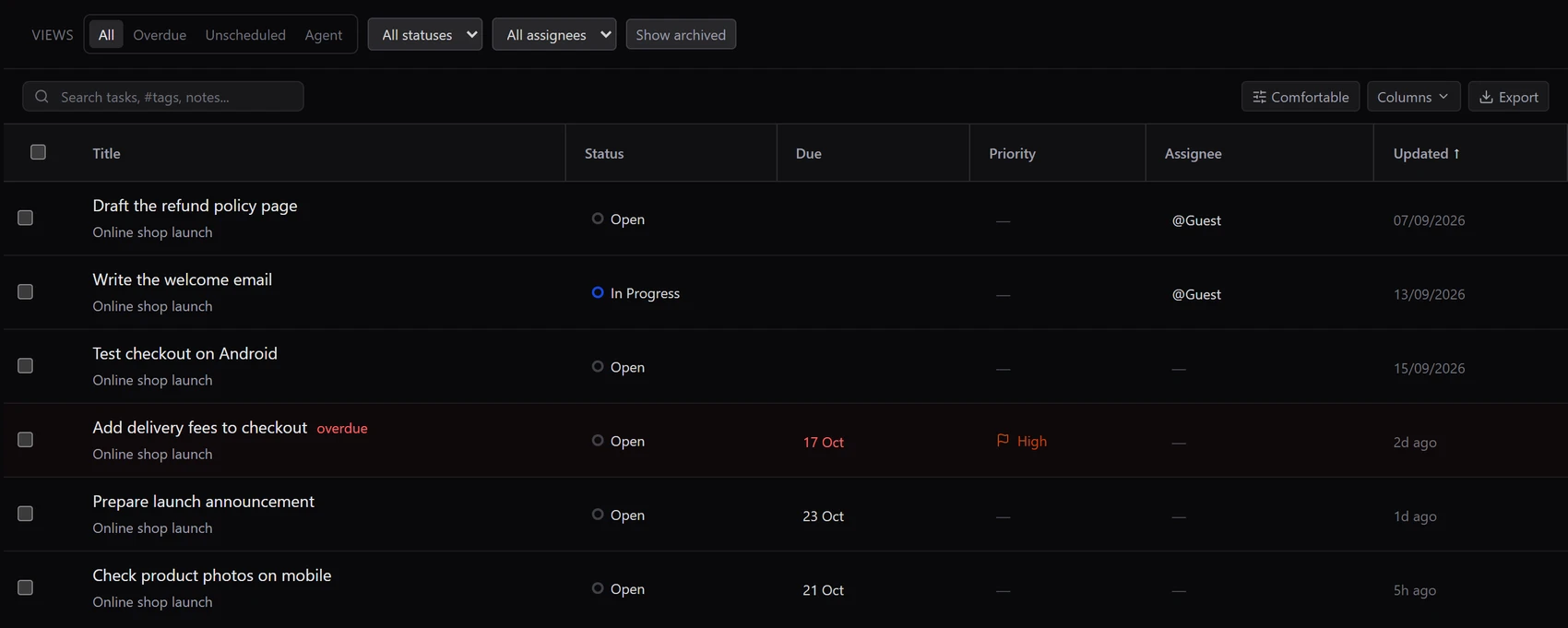
| Draft the refund policy page Open, assigned to you. Untouched for 41 days |
Close, no longer needed | Closed: the policy is now part of the checkout terms |
| Write the welcome email In progress, assigned to you. Untouched for 35 days |
Finish this week | Kept, due Wednesday |
| Test checkout on Android Open, no owner. Untouched for 33 days |
Assign and reschedule | Assigned to you, due next Friday |
After the check-in, the board shows two tasks with an owner and a current date, and one closed task with a recorded reason. The next session, whether yours or an assistant’s, starts from the work that is still planned.
Check the board yourself
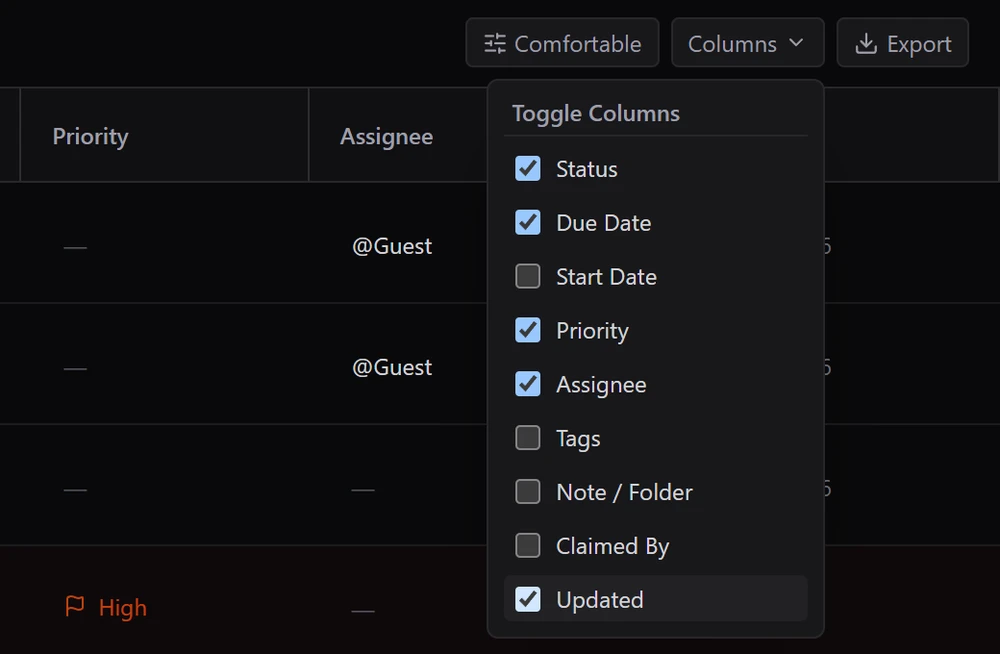
You do not need an assistant to find quiet work. In the List view, open Columns, tick Updated, then sort by Updated to bring the oldest tasks to the top.
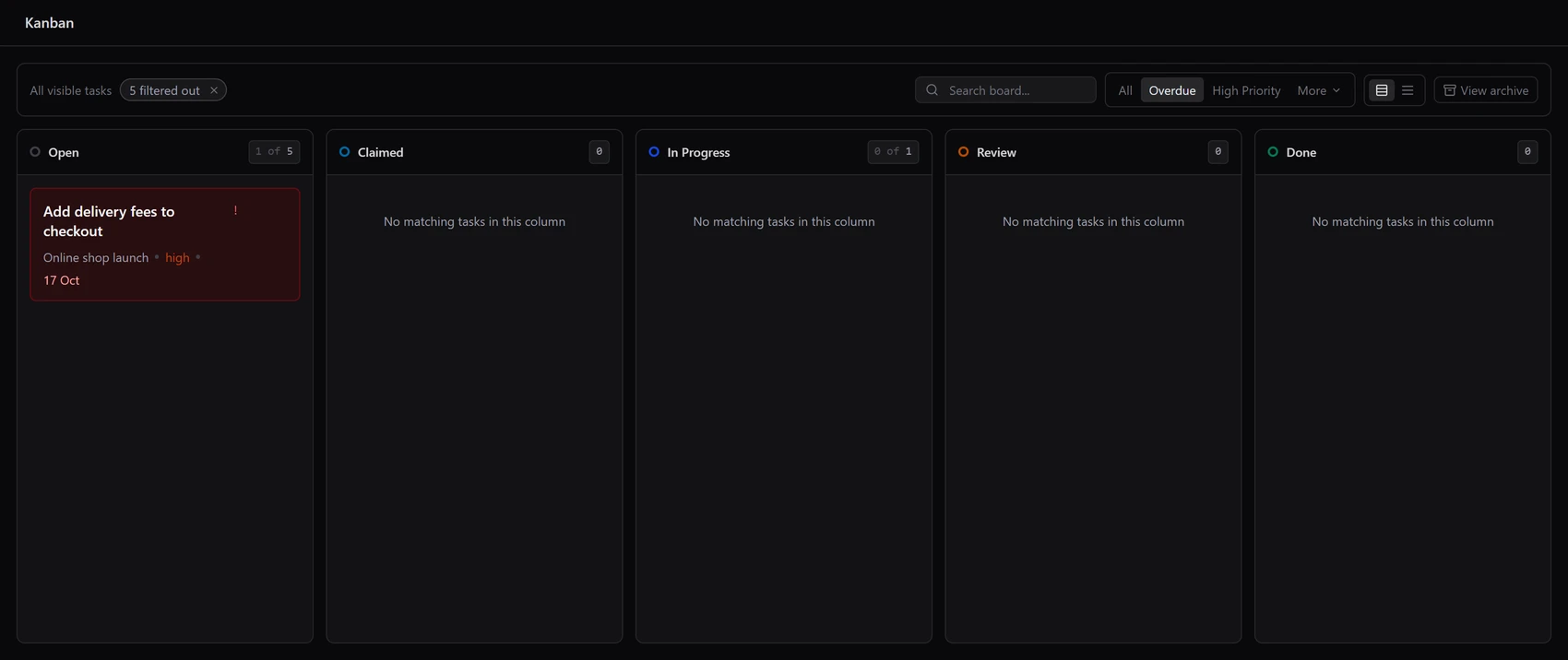
On the board, the Overdue and High Priority filters show work that is late or important, so you can see what needs attention this week alongside what has gone quiet.
In workspaces stored in the cloud, each task’s Activity history also lists its status changes, including the reason an assistant gave when it closed the task. The panel shows a shortened version of a long reason. The Windows app’s local workspace does not show this history.
Extra checks on Pro and Team
Paid plans add a fuller review:
- Risk check: the assistant can list overdue work, claimed tasks with no recent progress, high-priority tasks with no owner and items left waiting in Review.
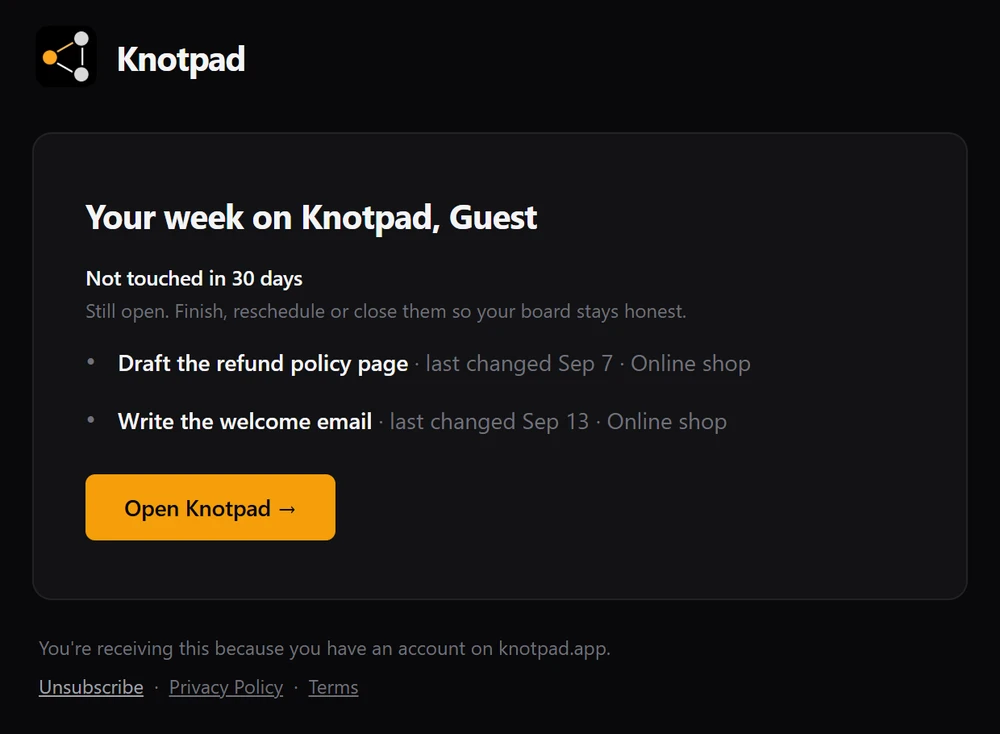
- Weekly email: a Monday summary includes a “Not touched in 30 days” section listing your own quiet tasks that are not already overdue. It is skipped in quiet weeks and can be turned off under Account, Data & Privacy, Weekly Digest.
- Busy-day limits: when the assistant reschedules work, it avoids days already at the limit you set, unless you agree to overload one.
What a check-in cannot do
The 30-day rule measures time, not importance. A task waiting on a client is flagged in the same way as an abandoned one, and only you know which is which. Knotpad also cannot tell whether work is finished: if a task looks done but nobody marked it, the assistant should ask, not assume.
For the next step after a check-in, see Knotpad’s guides on checking an assistant’s work before a task is marked done and running two assistants on one project.