
When a project log gets too long to read
A delivery log that grows every week becomes slow to scroll and harder for an AI assistant to read. Knotpad tells you when a note is getting large, moves older sections into a linked archive and gives long notes an outline.
A project log is most useful when it is kept up every week: what was built, what was checked and what was decided. After a few months, the same habit produces a note that is hard to use. Finding this week’s entry means scrolling past months of history, and an AI assistant asked to read the log has to work through all of it in parts.
Knotpad keeps long notes workable. It tells you when a note has grown large, lets you move older sections into a linked archive, and gives long notes an outline you and your assistant can navigate.
Know when a note has grown large
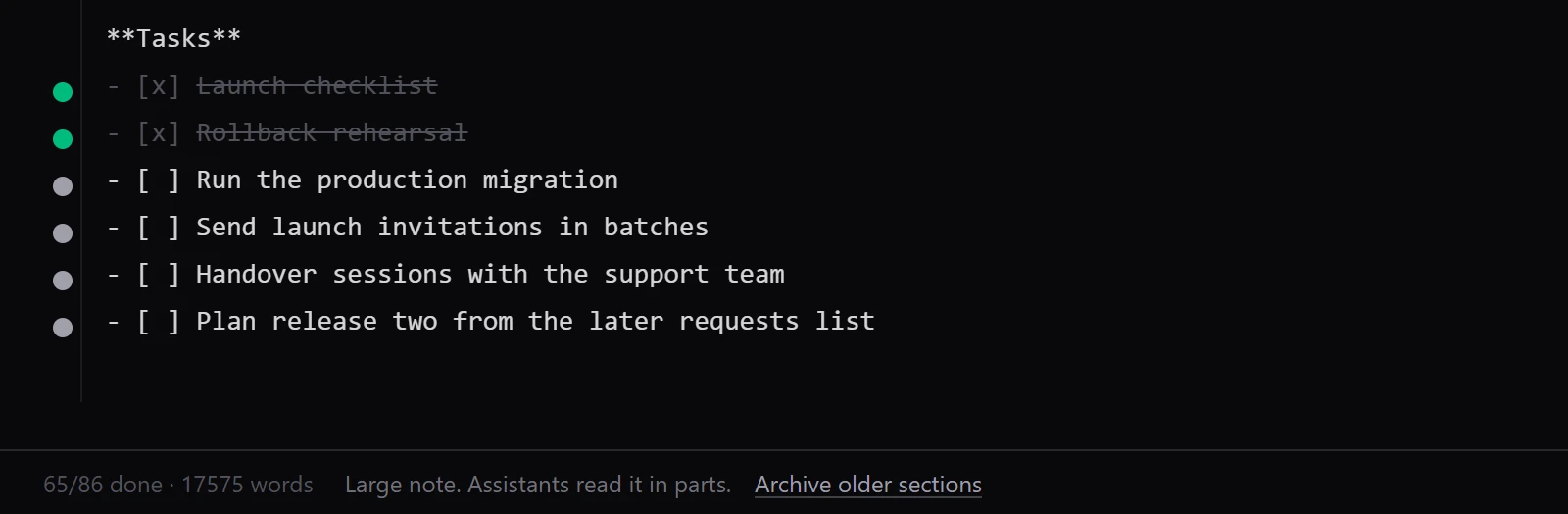
When a note passes 100,000 characters, the footer of the editor shows Large note. Assistants read it in parts. Hovering over it shows the exact size. It is a prompt to tidy the note, not an error: everything keeps working as before.
Move older sections into a linked archive
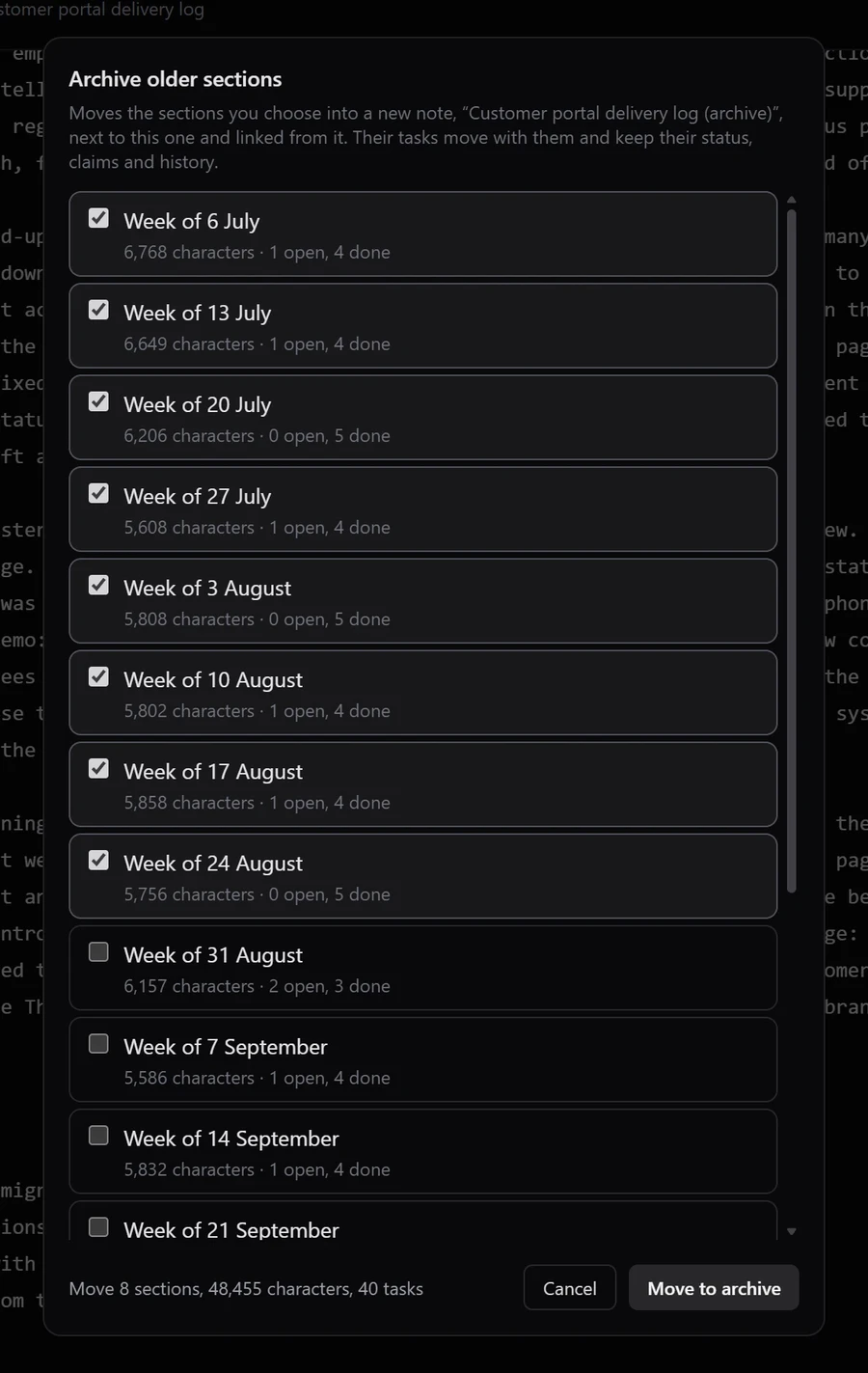
Select Archive older sections in the footer, or from the Export menu at any size. The dialog lists each top-level section with its size and how many tasks it holds, open and done. Nothing is selected for you: tick the sections you no longer need day to day, then choose Move to archive.
The sections move into a new note called “your note’s title (archive)” in the same folder. Nothing is deleted:
- Tasks keep their status and history. A finished task stays finished, and an open one stays open.
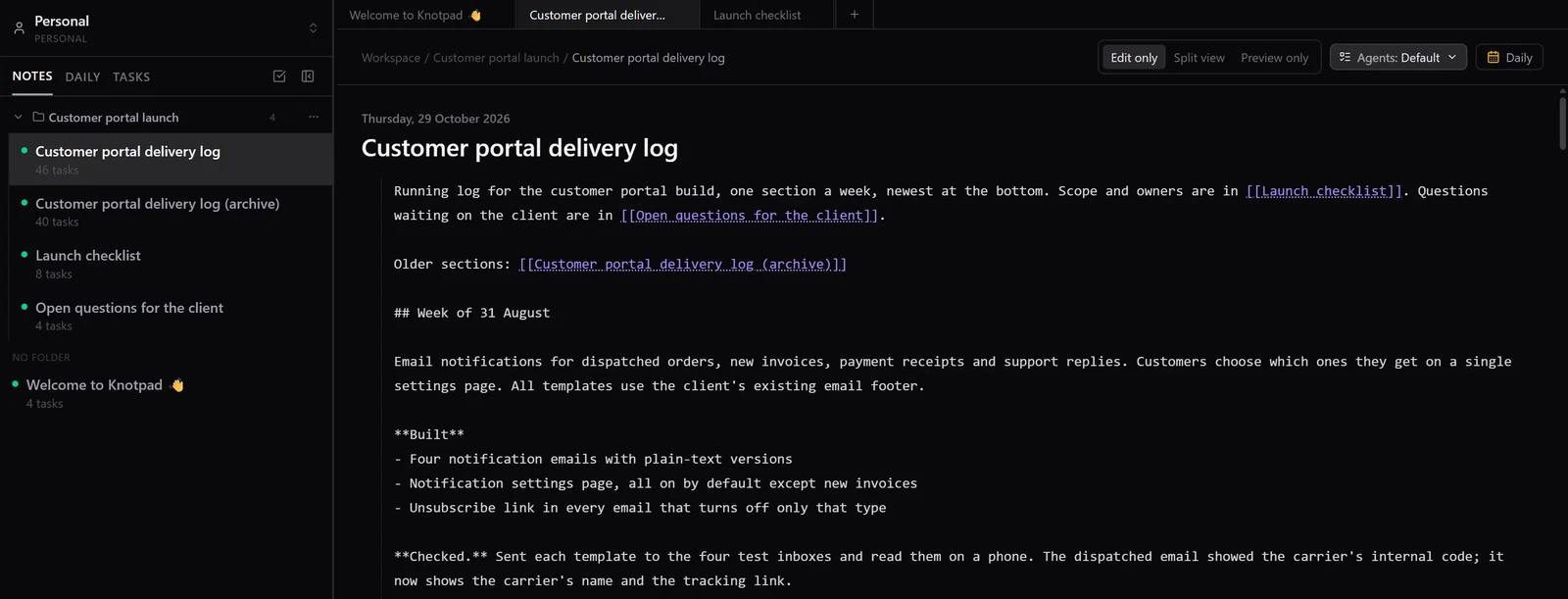
- Both notes link to each other. The original note gains a line pointing to its older sections, and the archive points back.
- Later archives join the same archive note, so the history stays in one place.
Navigate with an outline
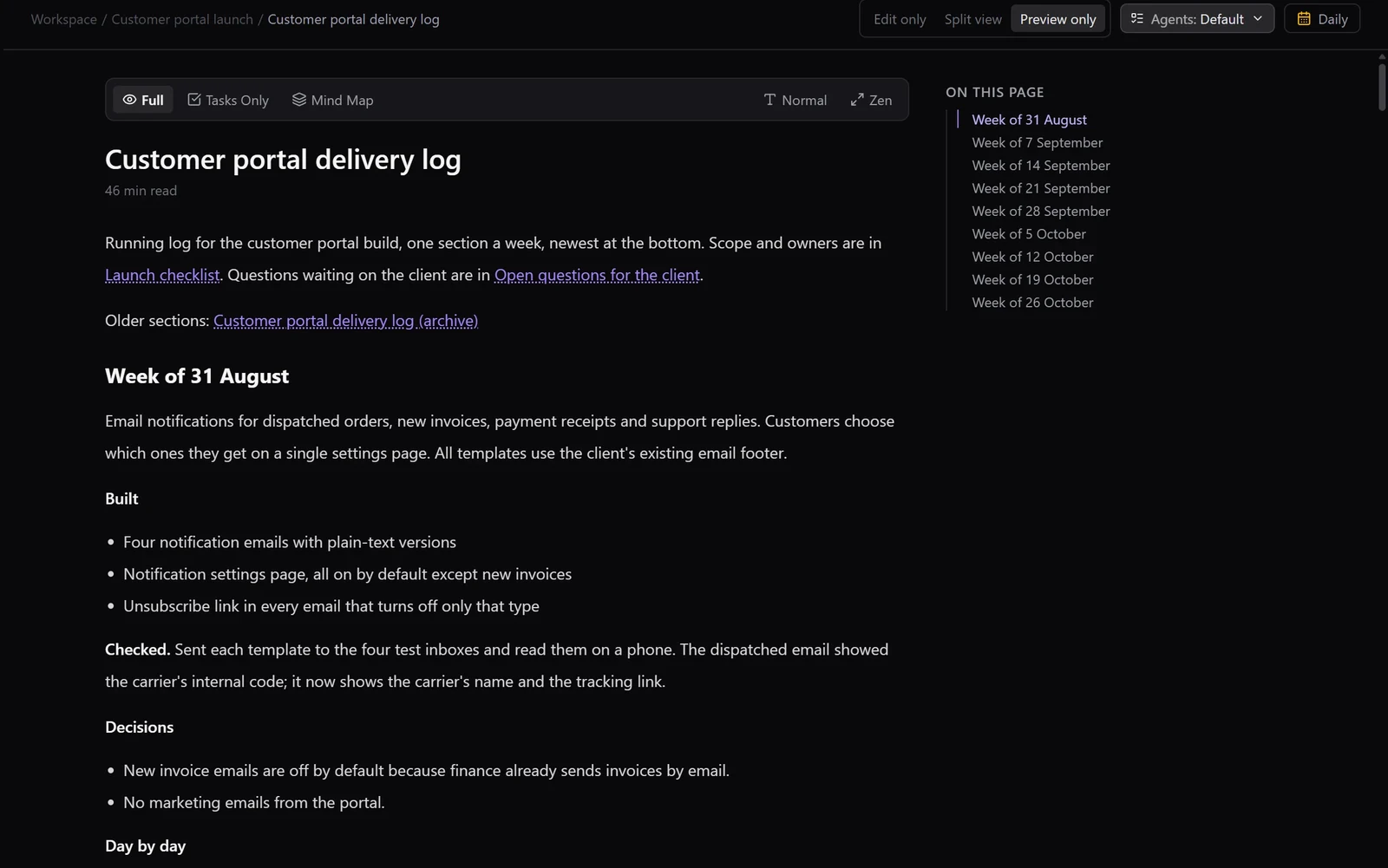
In the preview, a long note shows an On this page outline of its headings beside the text. Selecting a heading jumps straight to that section, so the latest week is one click away.
How your assistant reads a long note
A connected assistant reads shorter notes in full. For a longer note, Knotpad first gives it an outline of the headings with the size of each section, along with the opening lines. The assistant then opens the section it needs by its heading, for example this week’s entry, instead of reading months of history first.
This works best when the log has one heading per week or per month. The headings become the outline for you and the assistant, and they are the sections the archive dialog offers to move.
Example: a delivery log after four months
A fictional customer portal project has kept a weekly delivery log since July. By late October it holds 17 weekly sections and 86 tasks, and has passed 100,000 characters. The project lead ticks the eight weeks of July and August, and the dialog confirms the move: 8 sections, 48,455 characters and 40 tasks.
After the move, the current log holds September and October and has dropped to about half its size, so the large-note notice no longer shows. The archive note sits beside it in the same folder, and its 40 tasks keep their status, with 35 of them still marked done.
When the assistant is asked what was decided last week, it opens the outline and goes straight to that week’s heading.
Good to know
- Archiving is your choice. The assistant reads the outline but does not move sections for you.
- Daily notes are not archived this way, and a locked note needs to be unlocked first.
- A note without headings cannot be divided, so start each week or month with its own heading.
- Large-note handling works on every plan, in the web app and the Windows app.
For keeping the latest state easy to find, see Knotpad’s guides on keeping project documentation current and not re-explaining your project at the start of every session.